Friday, October 26, 2012

How to change the order of items in the SharePoint Quick Launch area.


I am very new to SharePoint Administration so something such as ordering an item in Sites in the Quick Launch pane may be simple to those with more experience, but it was a bit of a challenge for me to figure it out. 

After adding new items to Sites and refreshing my page I noticed that the two items I had added were not put in alphabetical order but rather inserted at the bottom of the list. 
See the screen shots below.


Saturday, October 6, 2012

Can't assign IP to NIC after a P to V conversion.


“IP address already assigned to another adapter” error message received after performing a P to V with VMware Converter.


This error occurs due to a hidden NIC that does not appear in Network Connections panel already having the static IP assigned to it that you wish to assign to a NIC that is visible. After entering your desired IP you get this error message:


Open Device Manager. Go to View and select Show hidden devices. Look for the NIC/Adapter in question. In my example it is Broadcom…..(NDIS VBD Client). Right click on the NIC/Adapter in question and click Uninstall.


Thursday, October 4, 2012


How to change size of a Drive or Partition during P to V using VMware vCenter Converter

Problem:

Server 2003 Physical machine has an oversize or undersized drive that you want to change during conversion. In my example the physical was partitioned with a very small C:\ and a very large E:\ drive. After my first run at P2V of this machine I attempted to use GParted to re-size the drives to no avail. 

Solution:

I have omitted many of the steps in configuring the Conversion wizard and will focus on the HDD aspects of it. 
  • When on the Options page under the Source volumes tab  of the Wizard select or deselect the HDD in question. In my example I did NOT want to convert the E:\, which was actually a partition that was carved out of the physical C:\. This in turn improperly sized the C:\ at only 50GB. Not nearly enough space for a Server 2003 machine. 


  • Now select Destination layout tab on the Options page. In my example I want to re-size the C:\ from 50GB to 65GB. In the Size/Capacity column drop down list select <Type size in GB> and type in the size that you desire. When you boot up the machine the C:\ will be at it's new 65GB size. 
  • In my example the easiest way for me to deal with the E:\ drive of the physical machine was to create a new drive in vCenter then move the data over from P to V across the network as it was not a large amount of data. 


Wednesday, June 13, 2012

ARRRGGHHH! Deleted photos off SD card by mistake.

Affordable Computer Geek of Salem MA

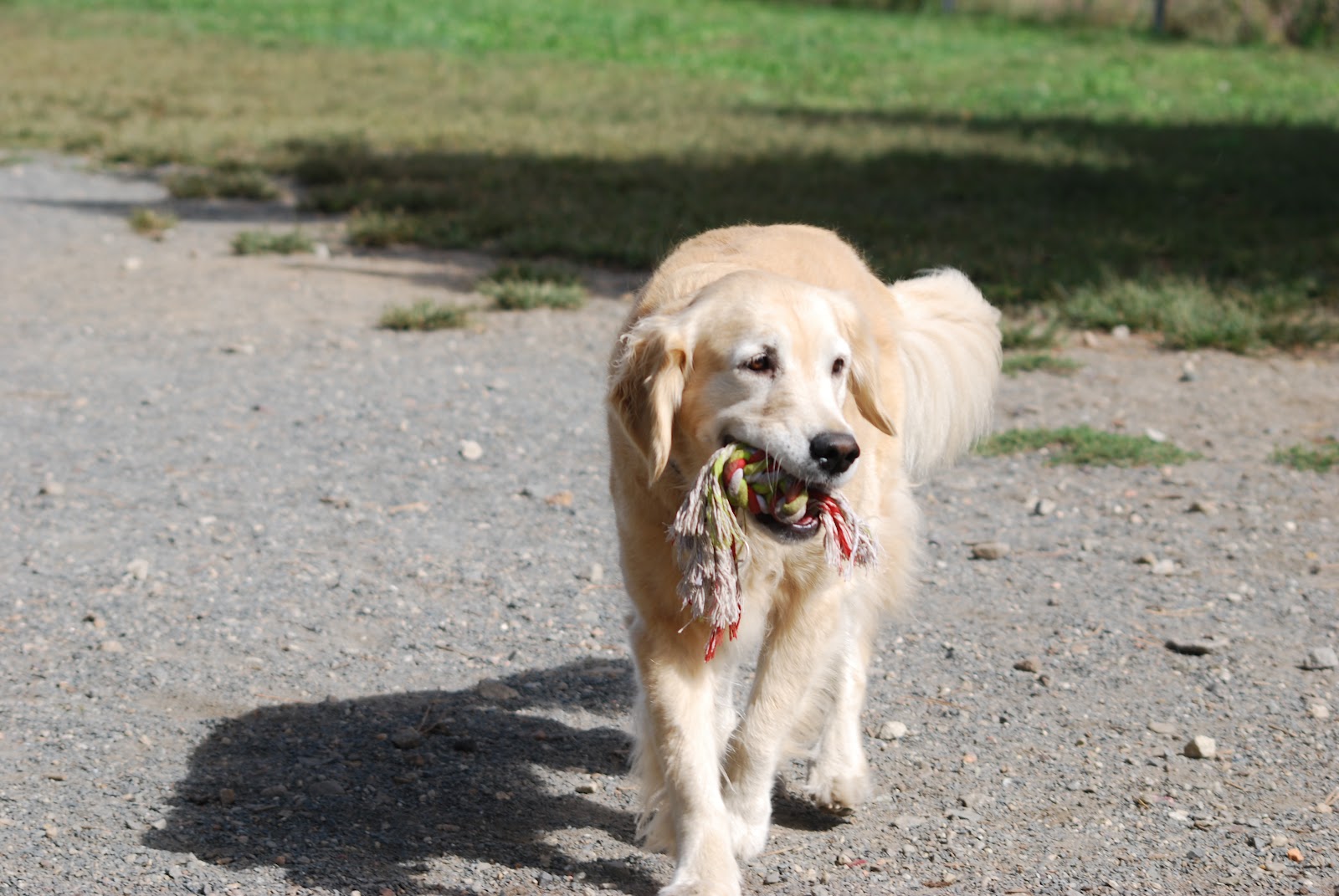
We took a trip to the dog park the other day and while shooting some pics discovered that the card was full. So from the cameras controls I deleted a handful of pictures and continued shooting. Fast forward to return home....

As I have many pics from the dog park and will most likely take more I am not all that upset. But there is always a different mix of dogs and there is always that one great shot. Plus I like to share them with the dog parks Facebook page for the other dogs people. What I am upset about is the fact that I just did a downright dumb move and broke my own rules about copying pics from the card.


Fast forward to return home....

I will usually remove the SD card and insert it in my laptop and COPY the pics off to the laptop. Always, well almost always I copy them off THEN delete them off the card. Why I didn't do it this way this time I have no idea.

Step Zero....DO NOT do anything to the storage (SD card) location. Do not remove the storage, do not delete anything else. Nothing!

Once I realized what I had done I turned to two different programs to help me out. Pandora File Recovery and Recuva. Both free. Pandora seems to be free outright. Recuva accepts donations for the free version and also has two paid versions.

Both are very easy to install and even easier to use. Probably even very easy for a novice computer user. Both did an equally good job in recovering my "deleted" photos.

Why air quotes on deleted? Well without getting very in depth when you press delete on your camera or on your computer it doesn't really mean delete. Not in all situations. What happened when I pressed delete on my camera and my laptop that day causes the space on the card of that particular picture I am deleting as open or free or better yet empty. The Master File Table (MFT) now knows that the particular location where your deleted photo was is now available to be overwritten.

What the file recovery programs do is read that MFT and find those locations and extract the photo information. It is not perfect, sometimes you get results as I post below. If you look closely you will see that it is actually a couple different pictures in the same file.


Thanks for reading,

Tony

Anthony C. Goodwin

Saturday, April 7, 2012

Devices & Printers Will Not Load.

Affordable Computer Geek of Salem MA 


Recently went to open Devices and Printers on a Dell Inspiron running Win 7 Home Premium, The window would open and you would see the green progress bar going across the address bar, but the devices would never appear.


I have seen this happen in a Server 2008 R2 Domain Controller in the past and it was fixed simply by doing a reboot. Unfortunately that did not do it in this instance.


One suggestion I found on line was to do the following: 


Click Start

Type: CMD, from the results, right click CMD
Click 'Run as Administrator'
At the Command Prompt, type: sfc/scannow
This will check for any integrity violations

Restart your system
Check your hard disk for any errors:
Click Start
Type: CMD, from the results, right click CMD
Click 'Run as Administrator'
At the Command Prompt, type: chkdsk /r /f
When you restart your system, your computer will be scanned for errors and attempts will be made to correct them.


Tried that to no avail. Next suggestion was to insert OS DVD and do a system repair. Not having the disk readily at hand I gave it some more thought. What is in Devices & Printers? Well Printers, right? That is obvious. The laptop itself is in there. What else? Cameras, memory cards, USB devices, Fax. Bluetooth. 


The last was my answer. Bluetooth. The owner of this laptop does not use Bluetooth and at some point The Bluetooth service was stopped and set to disabled in Computer Management--Services.


There are a few ways to get to Computer Management. One is to click on Start. In the search box enter compmgmt.msc and hit return. You will then see this window open:


Double click on Services and Applications then in the next window double click on Services. (you can click on either the one in the left or center pane. This will then open the services. Scroll down in the center pane until you see Bluetooth Support Services. (note, yours may be named slightly different) In this case the services start up status was set to disabled. Set this to automatic and press start.I didn't need a reboot in my instance, it just worked immediately. 


Thanks for reading,

Tony

Anthony C. Goodwin

Saturday, February 25, 2012

Dell Latitude E4300 keyboard replacement.


I was placing my laptop down on the desk and it slipped out of my hand and the back left corner hit the desk kind of hard. I didn't think anything of it as it only fell about two or three inches from my hand to the desk. I then started to type away and neither of my shift keys worked. All others appeared to work, the caps lock worked, I could bring up the virtual keyboard and the virtual shift worked, but not the physical ones. 

So this really isn't a true keyboard replacement, rather a keyboard re-seating. But the same principals apply. I expected to find that the ribbon cable from the keyboard to the system board to have been jarred loose. But as it turns out this keyboard has solid contacts that slide into a slot just under the track pad. Curious that only the shift keys were affected?

Remove the power cord and battery. Make sure you are properly grounded to avoid static discharge while working. Any time you work with the plastics on laptops there is always the chance for damage. Perform this operation at your own risk. I am not responsible for equipment and or personal injury. 


I prefer to use a nylon or plastic spudger but as I couldn't find mine and this is my personal machine I opted for the flat tip screwdriver. The plastic parts can snap very easily so take your time and lift just a tiny bit at a time. In this photo, just above the tip of the blade you can see a small slot in the plastic. That is where you will first carefully start to pry up.


Work slowly from right to left. Slide the tip of your spudger or finger along the bezel and it will un-clip from the base. Again, work slowly and do not stress this thin plastic at too great an angle, it will snap. On this particular laptop there are no connections between this bezel and the base, such as cabling of any type.


There are only three screws that hold the board in place. One above the Esc, one above the F8 and one above the Insert keys. Remove these screws and set them aside. 


Slowly and carefully pick up the back of the keyboard with your finger tips, preferably with both hands to equalize the stress of pulling it up wards and towards the screen at the same time. (note the missing F6 key. don't ask....)


On both the left and right side of the board are these small bumps or keys. They snap in and out of place under the base. 


As you pull up and towards the screen you will see that just below the space bar is where the keyboard plugs into the system board just below the track pad.
Now that you have the keyboard removed this is a good time to get a can of compressed air and clean out the base and the CPU fan.


At the base of the keyboard are several keys, such as the one you see here under Ctrl key. When replacing the keyboard you insert the contacts into the slot under track pad first, then these keys will fit under the palm rest. Then just simply lay the keyboard down pushing on the left and right sides to get those small keys on the sides under the base. At the same time keep pressure on edge of keyboard closest to screen to make sure the contacts are seating properly in the slot. See that the screw holes of keyboard and base are lined up and replace your screws. 


Thanks for reading,

Tony


Sunday, February 19, 2012

Trip to Leslie's Retreat Dog Park

Affordable Computer Geek of Salem MA


If there is a picture of your dog you would like, please tell me which one it is and I will email you the full sized image without the watermark. No promises that I will be able to respond quickly, but will do my best.

Thanks for reading,

Tony

Anthony C. Goodwin